Loading Data into Databricks – Step-by-Step Guide to Import CSV and JSON Files
Loading Data into Databricks – Learn how to upload and read CSV or JSON files using DBFS or mounted cloud storage, with hands-on examples and best practices.

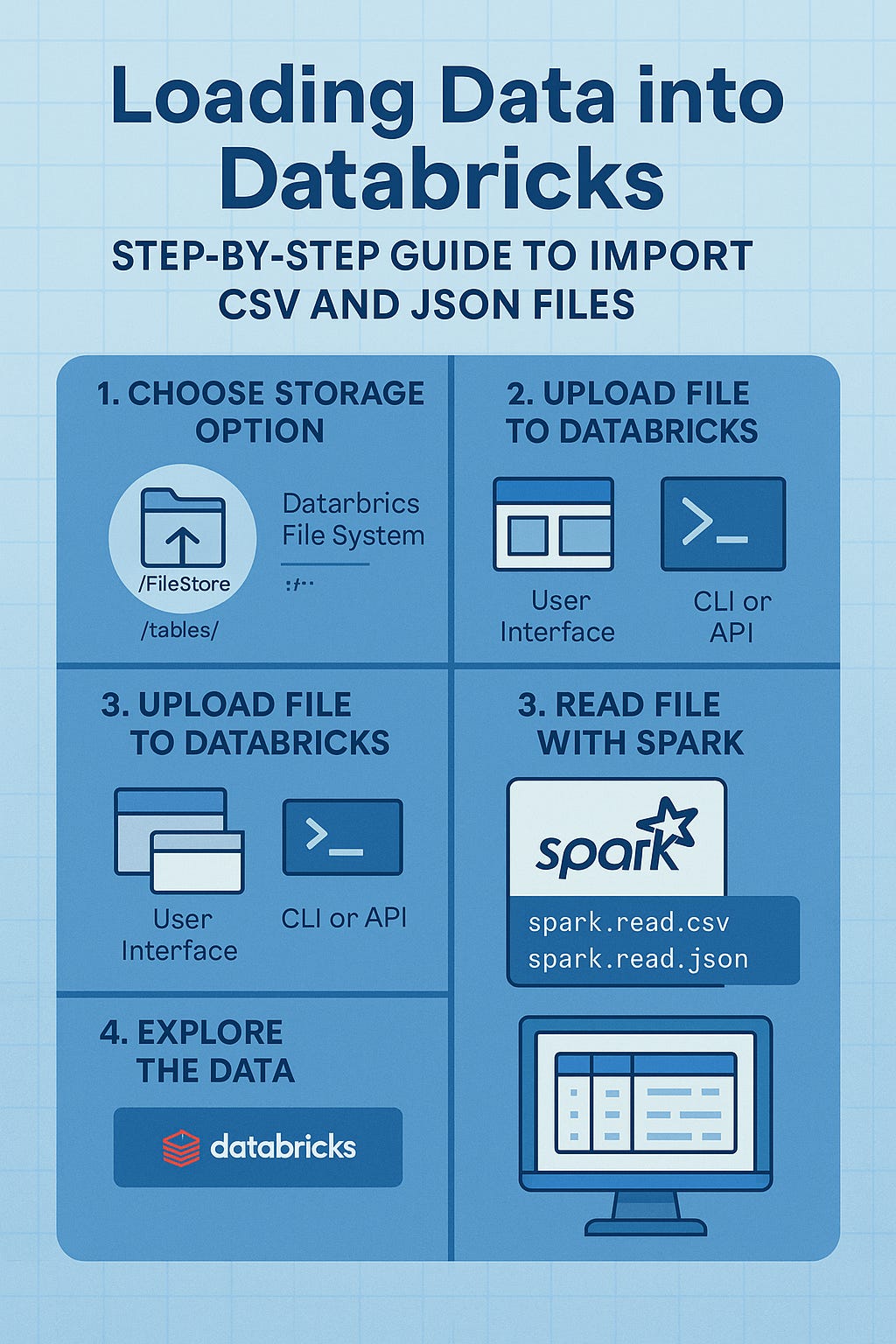
Introduction to Data Loading in Databricks
Why Efficient Data Loading Matters
In modern data workflows, how you load data can greatly impact performance, governance, and scalability. Databricks, with its Lakehouse architecture, offers powerful and flexible methods to bring in data from local files, cloud storage, or APIs.
Whether you're building a data pipeline or analyzing a CSV, the first step is always: load your data efficiently.
Supported File Formats (CSV, JSON, Parquet)
Databricks supports a wide array of file formats for ingestion, including:
CSV – for tabular data
JSON – for semi-structured data
Parquet, ORC, Avro – for optimized analytics
Delta – for ACID-compliant Lakehouse tables
In this guide, we’ll focus on CSV and JSON files using Databricks File System (DBFS) and mounted cloud storage.
Overview of Storage Options in Databricks
Databricks File System (DBFS)
DBFS is a distributed file system mounted into a Databricks workspace. It’s accessible across all clusters and allows you to upload, list, and read files like a standard filesystem.
Key Paths:
/databricks/driver//dbfs/FileStore//dbfs/tmp/
Mounting External Storage (AWS S3, Azure Data Lake)
For production-grade storage, Databricks allows you to mount cloud storage like:
AWS S3
Azure Data Lake Storage (Gen2)
Google Cloud Storage
Mounting integrates external buckets into your workspace and supports persistent data access across jobs and clusters.
Method 1 – Loading Data Using DBFS
Uploading Files via UI
Navigate to the Data tab in Databricks.
Click Add Data > Upload File.
Choose a CSV or JSON file from your local system.
Databricks stores it under
/FileStore/tables/filename.
Uploading Files Programmatically (CLI or API)
With the Databricks CLI:
databricks fs cp ./data/sample.csv dbfs:/FileStore/tables/sample.csvReading CSV/JSON Files from DBFS
# Reading CSV
df_csv = spark.read.option("header", "true").csv("/FileStore/tables/sample.csv")

# Reading JSON
df_json = spark.read.option("multiline", "true").json("/FileStore/tables/sample.json")
Method 2 – Loading Data from Mounted Storage
Mounting AWS S3 in Databricks
dbutils.fs.mount(
  source = "s3a://my-bucket/data/",
  mount_point = "/mnt/mydata",
  extra_configs = {"fs.s3a.access.key": "<ACCESS_KEY>", "fs.s3a.secret.key": "<SECRET_KEY>"}
)
Mounting Azure Data Lake Storage (ADLS)
configs = {"fs.azure.account.key.<storage_account>.dfs.core.windows.net": "<access_key>"}

dbutils.fs.mount(
  source = "abfss://<container>@<storage_account>.dfs.core.windows.net/",
  mount_point = "/mnt/adls",
  extra_configs = configs
)
Reading Files from Mounted Locations
df = spark.read.option("header", "true").csv("/mnt/mydata/sample.csv")Demonstration: Importing a CSV File into Databricks
Sample CSV Structure
id,name,age
1,Alice,30
2,Bob,25
Uploading CSV to DBFS
Use the web UI or CLI to upload the file.
Reading CSV with spark.read.csv()
df = spark.read.option("header", "true").csv("/FileStore/tables/people.csv")
df.show()
Demonstration: Importing a JSON File into Databricks
Sample JSON File
[
  {"id": 1, "name": "Alice", "age": 30},
  {"id": 2, "name": "Bob", "age": 25}
]
Reading JSON with spark.read.json()
df_json = spark.read.option("multiline", "true").json("/FileStore/tables/people.json")
df_json.display()
Using Auto Loader for Continuous Data Ingestion
Setting Up Auto Loader
Auto Loader allows you to process new files as they arrive in cloud storage:
df_auto = (spark.readStream
  .format("cloudFiles")
  .option("cloudFiles.format", "csv")
  .load("/mnt/mydata/incoming/"))
Schema Evolution and Inference
Auto Loader supports:
Automatic schema detection
Schema inference for evolving data structures
Using Notebooks to Load and Transform Data
Notebook Code Examples
def load_csv(path):
    return spark.read.option("header", "true").csv(path)

df = load_csv("/FileStore/tables/employees.csv")
df.filter("age > 30").display()
Tips for Reusability and Modularity
Wrap logic in reusable functions
Use parameterized widgets
Schedule via Jobs for automation
Best Practices for Loading Data in Databricks
File Size Optimization
Combine small files before upload
Use partitioning and bucketing
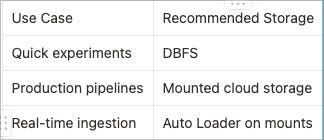
Choosing Between DBFS and Mounts
Common Issues and Troubleshooting Tips
File Not Found Errors
Check:
Correct path syntax (
/dbfs/vsdbfs:/)File upload location
Encoding and Schema Mismatch
Use
.option("encoding", "UTF-8")if neededUse
.schema()to define structure explicitly
Frequently Asked Questions (FAQs)
Q1: Can I read ZIP files in Databricks?
A: You must unzip the file before uploading or use libraries to read compressed content.
Q2: Is DBFS accessible from outside Databricks?
A: No. DBFS is internal. For external sharing, use cloud storage mounts.
Q3: Can I schedule data loads?
A: Yes, using Databricks Jobs or Auto Loader.
Q4: What’s the difference between dbfs:/ and /dbfs/?
A: dbfs:/ is used within Spark APIs; /dbfs/ is used from the driver or shell.
Q5: How large can my files be?
A: Depends on cluster size, but Databricks handles terabyte-scale files efficiently.
Q6: How do I monitor ingestion jobs?
A: Use Spark UI, notebook logs, or Job Run logs for visibility.
Conclusion: The Best Way to Load Data into Databricks
Loading data into Databricks is easy once you understand the landscape:
Use DBFS for quick testing
Use mounts for production-scale data
Leverage Auto Loader for streaming ingestion
Whether you're importing a local CSV or managing TBs of data in the cloud, Databricks offers a seamless experience tailored to your needs.